m00grin/ph-intercept
Live Pi-hole, AdGuard Home, Technitium & Blocky dashboard. Blocked DNS queries get shot down.
5.9K
m00grin/ph-intercept repository overview
ph-intercept
A Pi-hole, AdGuard Home, Technitium DNS, and Blocky visualizer and dashboard that runs as a standalone Docker container. Streams live DNS query events from your Pi-hole v6, AdGuard Home, Technitium DNS, or Blocky server and renders them as pixel-art friendlies and enemies. Blocked queries are destroyed by the ship, allowed queries fly through. Toggle blocking, set timed disables, update block lists, and switch ships from the HUD.
Designed to be dropped in alongside an existing DNS setup with no extra dependencies. Two ad-blockers, even different kinds, can run side by side in local 2-player split-screen.
Try the live demo in your browser first, no install needed.
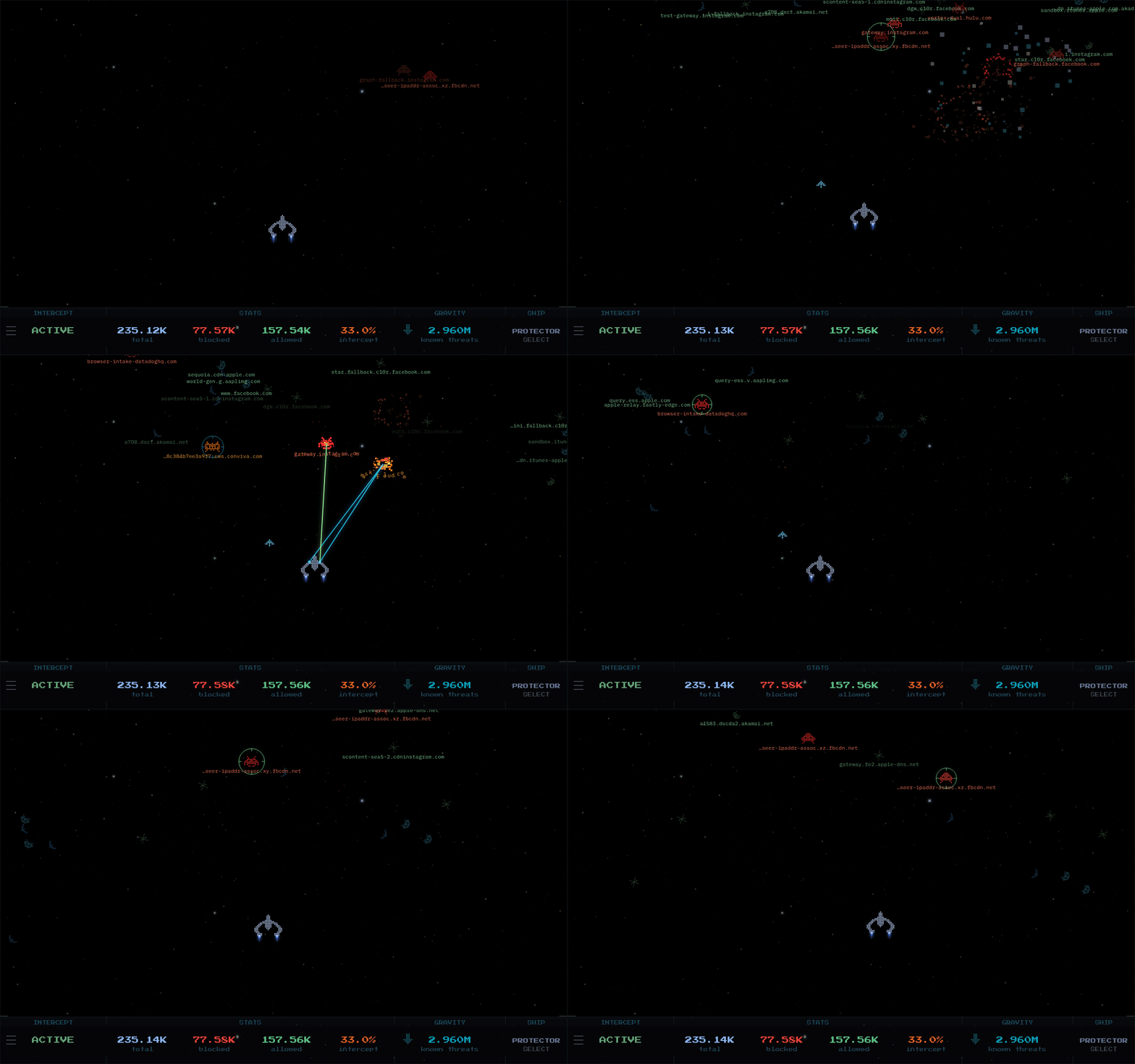
| Starfield | Nebula | Outrun |
|---|---|---|
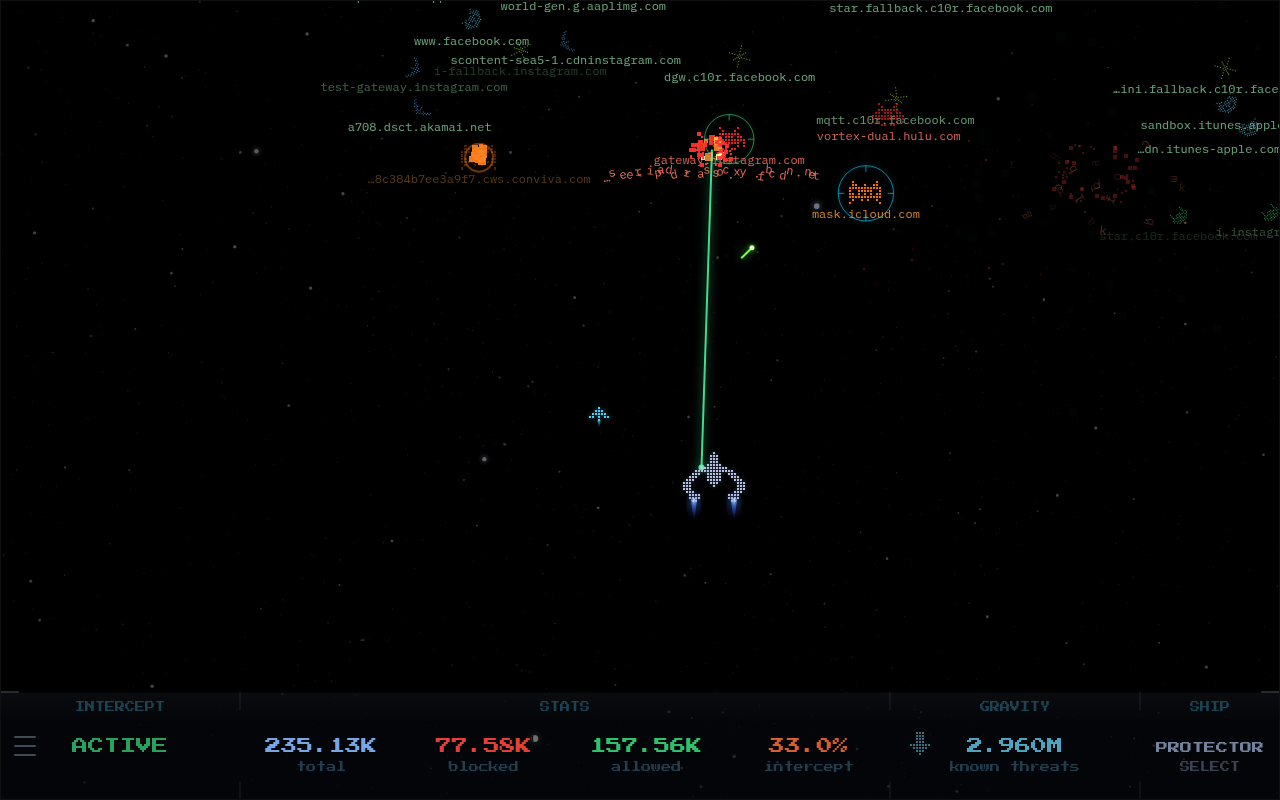 | 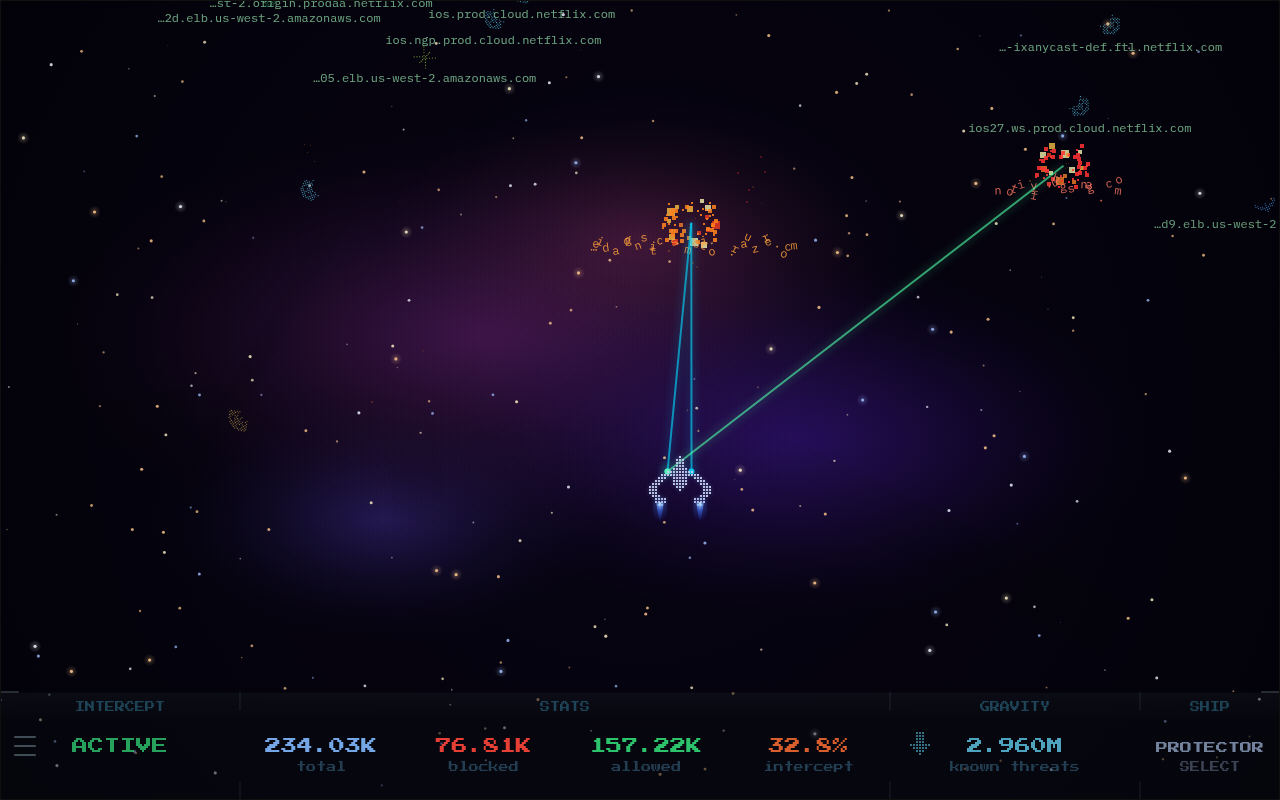 | 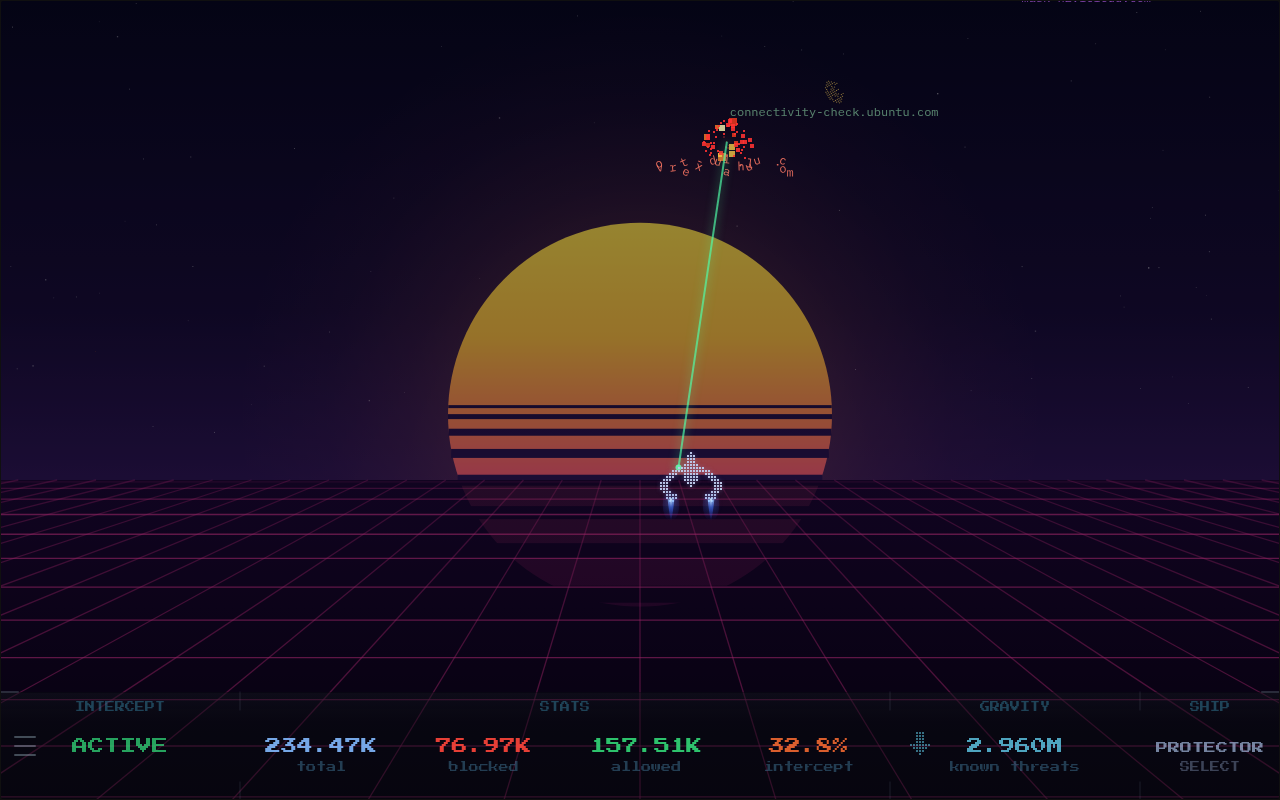 |
One compose for every ad-blocker. Pi-hole, AdGuard Home, Technitium DNS, and Blocky all use the compose below. ph-intercept works out which one you run. A few servers need one extra step: see Your ad-blocker.
Quick Start
1. Have your ad-blocker's address and login ready (see Your ad-blocker for what each one needs):
-
Pi-hole: an app password (not your web login password), from Settings → Web interface / API → Configure app password.
-
AdGuard Home: your username and password.
-
Technitium DNS: an API token (Administration → Sessions → Create Token), or your username and password.
-
Blocky: no login. It needs its query log shared instead: see Blocky setup.
-
CLI users: Create a
.envfile in the same directory as yourcompose.yaml:BLOCKER_PASSWORD=your_password -
Portainer users: Skip the
.envfile. AddBLOCKER_PASSWORDas an environment variable directly in the Portainer stack config.
2. Create a compose.yaml (copy the example below or grab compose.yaml from the repo) and set BLOCKER_URL to the address you open in a browser to manage your ad-blocker. For AdGuard Home, also uncomment BLOCKER_USERNAME; for Technitium, BLOCKER_USERNAME or BLOCKER_TOKEN:
services:
  ph-intercept:
    image: m00grin/ph-intercept:latest
    hostname: ph-intercept
    container_name: ph-intercept
    restart: unless-stopped
    deploy:
      resources:
        limits:
          memory: 128m
          cpus: "1"
          pids: 20

    environment:
      # REQUIRED: the address you open in a browser to manage your ad-blocker.
      # Works with Pi-hole v6, AdGuard Home, Technitium DNS, and Blocky; ph-intercept
      # detects which one it is. Example: "http://192.168.1.2"
      BLOCKER_URL: "http://CHANGE.ME"

      # Pi-hole: an app password. AdGuard Home or Technitium: your login password.
      # Blocky has no login: leave it out.
      BLOCKER_PASSWORD: ${BLOCKER_PASSWORD}

      # AdGuard Home and Technitium only: your login username
      # BLOCKER_USERNAME: "admin"

      # Technitium only: an API token instead of a username and password
      # BLOCKER_TOKEN: ${BLOCKER_TOKEN}

      # Optional: where ESC navigates to (like your homelab dashboard or homepage)
      # Accepts http://, https://, protocol-relative (//), relative paths, and custom app schemes
      # Leave blank ("") to disable ESC entirely
      RETURN_URL: ""

      # Background. These set the DEFAULT; each user can also switch the background live
      # from the in-app settings menu, and their choice is remembered per-browser.
      # Style: starfield | nebula | outrun | dark
      BG_MODE: starfield

      # Sky region shown for the starfield:
      #   summer_triangle | orion | scorpius | southern_cross
      SKY_PRESET: summer_triangle

      # Optional custom background image: a URL, or /bg/your-filename.jpg (mounted volume).
      # When set, it becomes the default and enables the in-app "CUSTOM" option so it can be
      # picked any time. Leave blank to disable it (CUSTOM shows greyed out in the menu).
      BG_IMAGE: ""

      # SSL certificate verification. Set to "false" if your ad-blocker uses HTTPS
      #  with a self-signed certificate. Leave as "true" for HTTP or valid HTTPS.
      BLOCKER_VERIFY_SSL: "true"

      # 2-player local mode: a second ad-blocker, any of the four, for a second ship on
      # the right half. Same settings as above with BLOCKER2_.
      # BLOCKER2_URL: "http://192.168.1.3"
      # BLOCKER2_PASSWORD: ${BLOCKER2_PASSWORD}

    volumes:
      - ./bg:/app/static/bg
      # Persists 2-player mode state across container restarts
      - data:/app/data
      # Blocky only: the folder Blocky writes its CSV query log to, read-only
      # - /path/to/blocky/logs:/blocky-logs:ro

    cap_drop:
      - ALL

    security_opt:
      - "no-new-privileges:true"

    read_only: true

    logging:
      driver: "json-file"
      options:
        max-size: "10m"
        max-file: "3"

    ports:
      # Host port : container port. Change the left side if 4653 is taken
      - "4653:4653"

    # Optional: point DNS at your Pi-hole (if used for DNS resolution) or resolver directly (like Unbound)
    # dns:
    #   - your.dns.dockernet.ip

    # Optional: only needed if you use static IPs on a custom Docker network
    # Uncomment both networks blocks if you need this
    # networks:
    #   intercept_net:
    #     ipv4_address: this.container.dockernet.ip

# networks:
#   intercept_net:
#     external: true

volumes:
  data:
3. Start the container:
docker compose up -d
Open http://your-host:4653.
Technitium DNS setup
Use the Quick Start compose above. Optional settings are listed under Configuration.
What you need first
ph-intercept reads two things from Technitium: the dashboard stats (built in, nothing to do) and the live query log. Technitium serves its query log through a DNS app rather than a built-in endpoint, so there is one setup step and one credential to create.
1. Install the query-log app. In the Technitium console, go to Apps -> App Store and install Query Logs (Sqlite). Despite the name there is no database to run: SQLite is embedded, so the app just writes to a file inside Technitium. This is the standard, zero-dependency choice; Technitium also offers MySQL / PostgreSQL / SQL Server variants if you already run one of those, and any of them works.
2. Create a login for ph-intercept. In the console, go to Administration -> Sessions -> Create Token and copy the token. (A username and password works too, but a token is cleaner and never expires from inactivity.)
That is the entire Technitium-side setup. If the query-log app is missing, the HUD still works (stats and the blocking toggle) but no ships spawn. If you installed the app under a custom name, set TECHNITIUM_QUERY_LOG_APP / TECHNITIUM_QUERY_LOG_CLASS to match; the defaults are Query Logs (Sqlite) and QueryLogsSqlite.App.
Image Tags
| Tag | What it is |
|---|---|
:latest | Latest stable release. |
:X.Y.Z | Pinned release (e.g. 1.6.0). |
:develop | GHCR only. Built automatically on every push to the develop branch. May be unstable. Good for trying out what I'm working on. |
Entities
Each DNS query spawns an entity. Tier scales with how many times that domain has queried while the entity is still on screen:
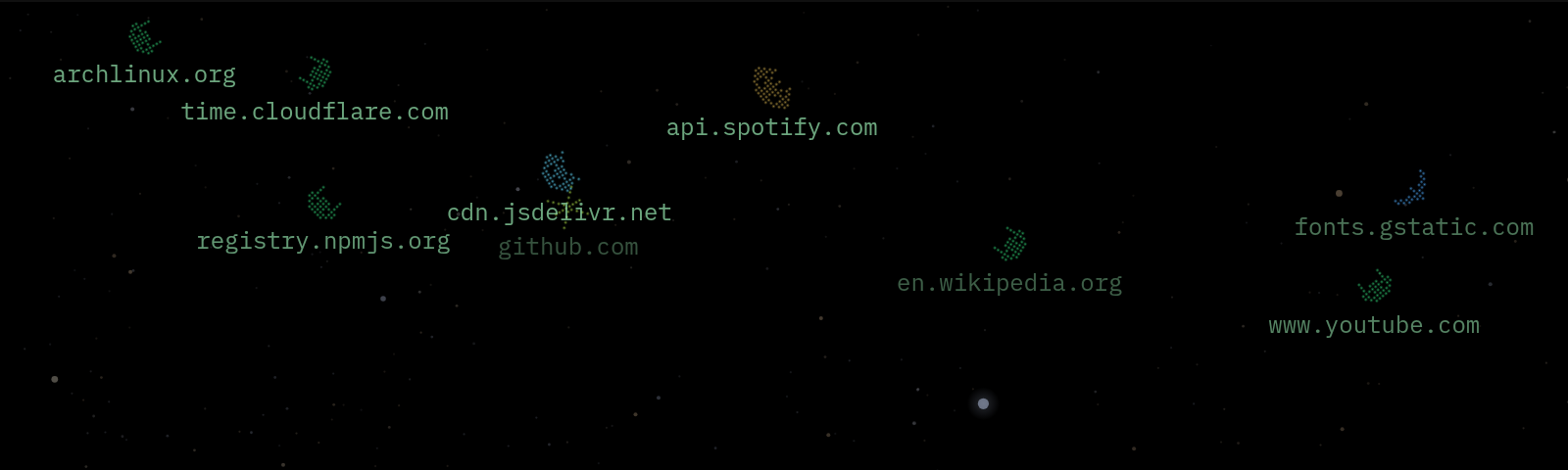
Allowed queries: friendly ships traveling across the screen. Cache-answered queries move faster than upstream-answered ones.
| Tier | Condition | Shape | Color |
|---|---|---|---|
| 1 | First query | Rounded shuttle · Delta wing · X-wing | Green · Blue · Lime |
| 2 | Queried again while on screen | Heavy transport | Cyan |
| 3+ | Three or more queries while on screen | Capital ship | Gold |
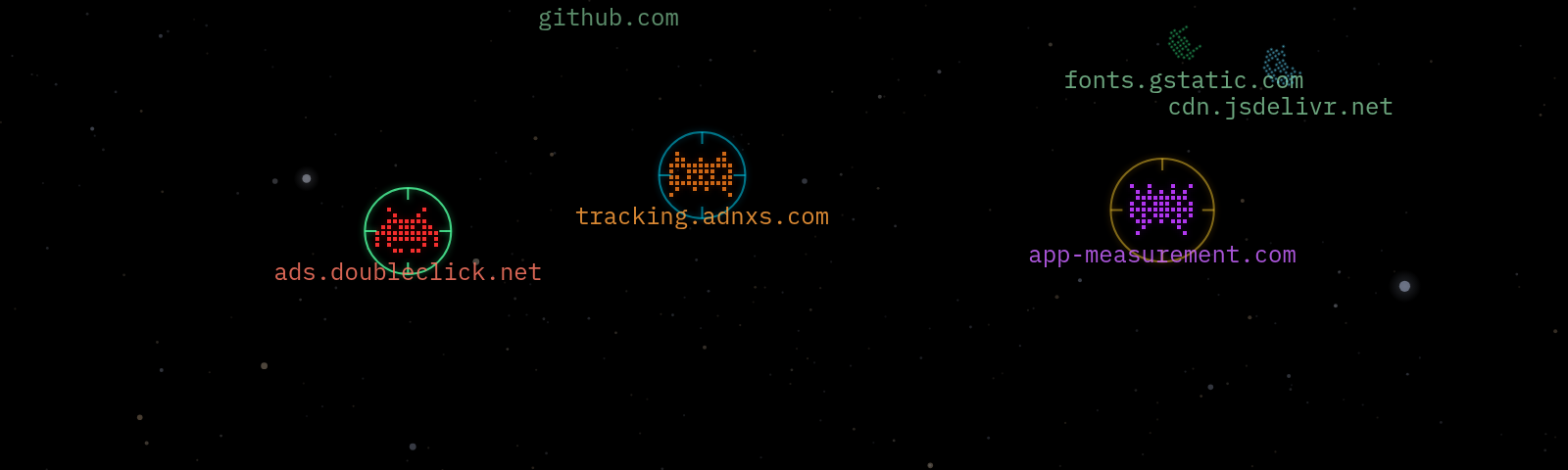
Blocked queries: enemies the ship targets and destroys. A domain blocked again while still on screen mutates its sprite to the next tier in place.
| Tier | Condition | Shape | Color |
|---|---|---|---|
| 1 | First block | Crab invader · Squid | Red |
| 2 | Blocked twice | Heavy drone | Orange |
| 3+ | Three or more | Boss | Purple |
Ship weapon color tracks tier: green for tier 1, cyan for tier 2, gold for tier 3+.
The ship
The ship targets and destroys blocked entities autonomously. At five on-screen threats a support drone launches and flanks; at ten a second drone deploys. Drones are recalled when the threat count drops.
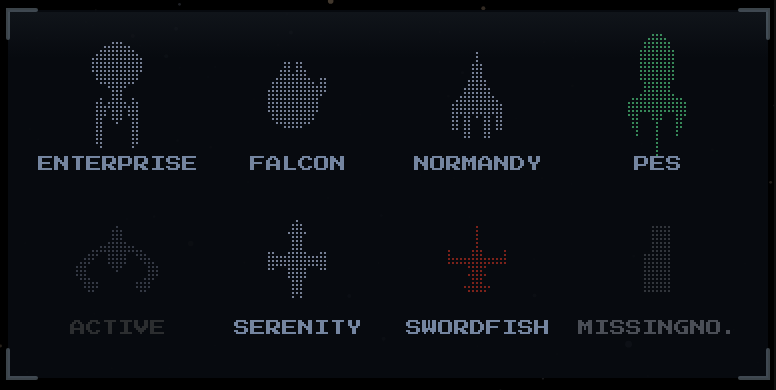
Seven ships are selectable from the HUD: Protector (NSEA Protector, default), Falcon (Millennium Falcon), Swordfish (Swordfish II), Enterprise (NCC-1701), Serenity (Firefly), Normandy (Mass Effect), and PES (Planet Express Ship). Switching ships triggers a warp-out/warp-in transition that pushes nearby entities aside.
The HUD
A strip across the bottom, divided into four panels:
INTERCEPT: blocking status and toggle. Click to open a menu of timed disables (your ad-blocker's own choices) or a full disable. A countdown shows during a timed disable; it survives navigation and syncs if blocking changes remotely.
STATS: total queries, blocked, allowed, and block percentage. Updated live. Technitium says no error for allowed.
Lists: block list size, named the way your ad-blocker names it: GRAVITY (Pi-hole), BLOCKLIST (AdGuard Home), BLOCK LIST (Technitium), or DENYLIST (Blocky). A mixed pair reads LISTS. The arrow triggers a list update and confirms when done.
SHIPS: active ship name. Click to open the ship selector.

A hamburger button at the left edge of the HUD opens the Settings panel, which includes:
- Friendlies, Client, Domain: show or hide friendly entities, the requesting client label, and the domain label
- CRT filter: a scanline overlay
- Auto-hide: slides the HUD away until you hover it
- Background: switch style and sky region live
- Pi-hole (or your ad-blocker's name): opens its web interface, one per player
Display settings are saved to localStorage and restored on next load.
The background
Four modes are available via BG_MODE:
starfield (default): Renders a real section of the night sky from an accurate star catalog (~12,200 stars to magnitude 6.8, color-coded by spectral type). Positions use equatorial coordinates; what you see is where the stars actually are. The sky region is set by SKY_PRESET.
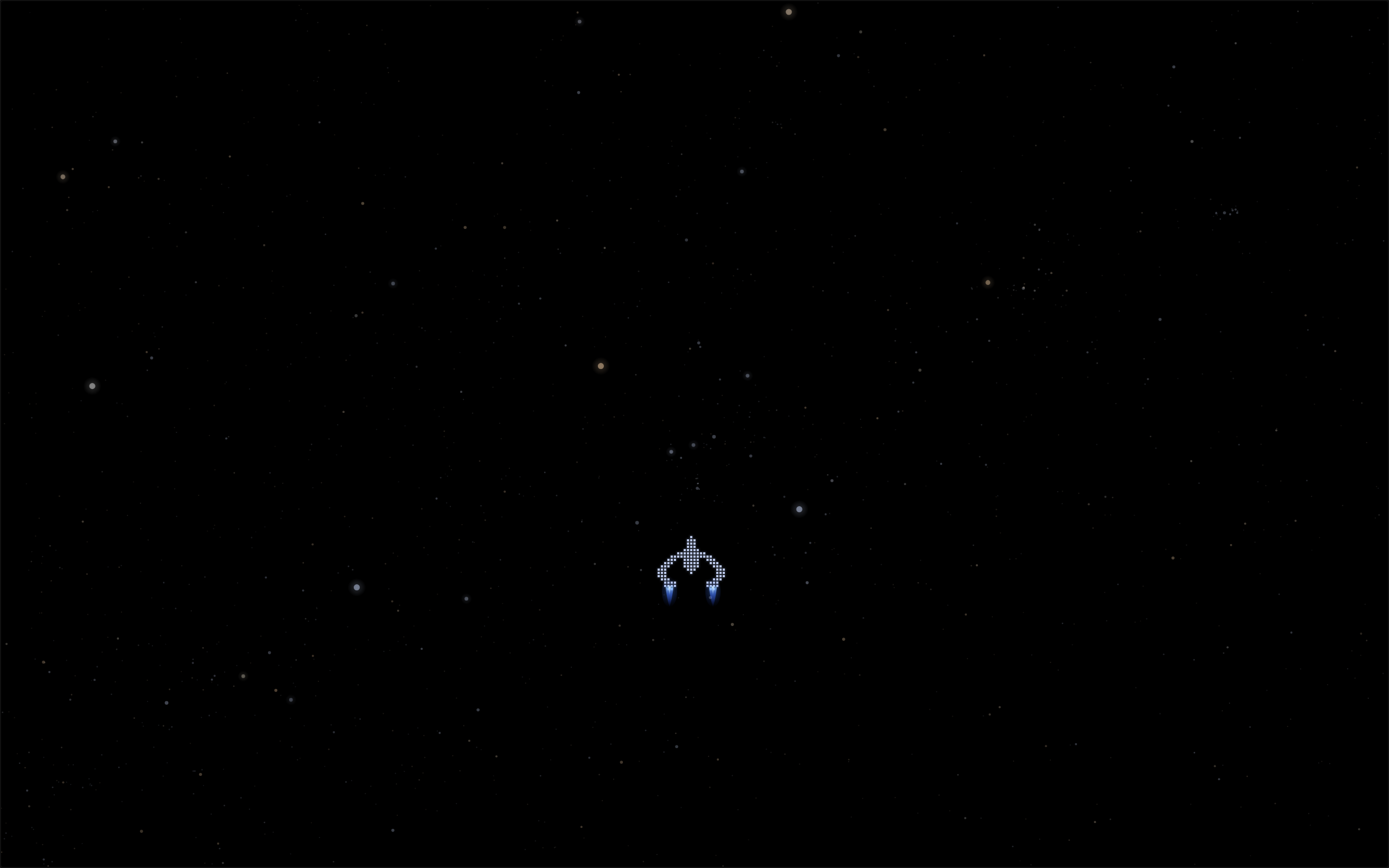
Star data is from the HYG Database by David Nash (astronexus.com), combining Hipparcos (ESA) and the Yale Bright Star Catalogue, and is licensed under CC BY-SA 4.0.
Planets: Mars, Jupiter, Saturn (with ring), and the Moon are computed from real orbital elements and appear at their actual sky positions, updated hourly.
Transients: occasional satellite passes and meteors, including the ISS.
nebula: A procedurally generated nebula. Overlapping color lobes with value noise, dust lanes, and a synthetic star layer. Fully GPU-rendered, no catalog data.
outrun: A retro synthwave scene. A banded sun setting on the horizon over a scrolling neon perspective grid, with a starry sky. Pairs especially well with the CRT filter.
dark: Plain black background. No canvas rendering overhead.
BG_IMAGE: A custom image (URL or a /bg/your-file.jpg mounted into the container).
The env vars set the default background. Each user can also switch it live from the in-app settings menu (Background), including sky presets and, when BG_IMAGE is set, a CUSTOM option. That choice is remembered per browser and never changes anyone else's default.
Portainer: drop image files into /data/compose/<stack-id>/bg/ on the Portainer host (where the ./bg bind mount resolves).
Configuration
All configuration is via environment variables in compose.yaml.
Upgrading? Your compose keeps working as it is: every setting from earlier releases (
PIHOLE_URL,ADGUARD_PASSWORD,PROVIDER, and the rest) is still read, and wins if both an old and a new name are set. The new names below are the simpler way to set up from scratch. Older settings maps one to the other.
Required
| Variable | Description |
|---|---|
BLOCKER_URL | The address you open in a browser to manage your ad-blocker, e.g. http://192.168.1.2. A pasted /admin or /api on the end is fine. |
BLOCKER_PASSWORD | Pi-hole: app password. AdGuard Home or Technitium: login password. Not used by Blocky. CLI: set in a .env file. Portainer: add as an environment variable in the stack. |
Optional
| Variable | Default | Description |
|---|---|---|
BLOCKER_USERNAME | "" | AdGuard Home or Technitium login username. |
BLOCKER_TOKEN | "" | Technitium API token, instead of a username and password. |
BLOCKER_TYPE | (detected) | pihole, adguard, technitium, or blocky. Leave it out and ph-intercept identifies the server at startup. If set and the server turns out to be something else, ph-intercept says so and doesn't start that side. |
BLOCKER_VERIFY_SSL | true | Set to false if your ad-blocker uses HTTPS with a self-signed certificate. |
BLOCKER_DASHBOARD | (derived) | Link for the settings menu. Defaults to the server's own web interface. |
RETURN_URL | "" | URL that ESC navigates to. Accepts http://, https://, protocol-relative (//), relative paths, and custom app schemes. Leave blank to disable ESC. |
BG_MODE | starfield | Default background: starfield · nebula · outrun · dark. Switchable live in-app. |
SKY_PRESET | summer_triangle | Default sky region: summer_triangle · orion · scorpius · southern_cross. Switchable live in-app. |
BG_IMAGE | "" | Custom image URL or /bg/filename.jpg. When set, it's the default and enables the in-app CUSTOM option; blank leaves CUSTOM disabled. |
READ_ONLY | false | Set to true for a wall display or a page others can open: the server refuses every request that changes something (blocking toggle, list update, 2-player mode) with HTTP 403, and the HUD disables or hides those controls. Status and stats stay visible. |
HIDE_CLIENT | false | Set to true to drop the client name or IP from every query before it is sent to the browser. The in-app CLIENT toggle is hidden. |
HIDE_DOMAIN | false | Set to true to replace every domain with an opaque token before it is sent to the browser (HMAC-SHA256 with a random key generated at each start, so tokens can't be looked up from a list of common domains). Repeat queries still group into tiers; domain labels, the letter fragments on a kill, and the in-app DOMAIN toggle are left out. |
IGNORE_DOMAINS | (unset) | Comma-separated regex patterns. Domains that match spawn no ships, on both sides. Case-insensitive; escape literal dots (\.local$). Example: .*\.local$,.*\.internal$ |
IGNORE_CLIENTS | (unset) | Comma-separated regex patterns, matched against the client name and IP. Queries from matching clients spawn no ships, on both sides. Case-insensitive; escape literal dots (^192\.168\.1\.99$). Example: ^uptime-kuma$,^10\.0\.0\.5$ |
BLOCKER_IGNORE_DOMAINS, BLOCKER_IGNORE_CLIENTS | (unset) | Same, for player 1's side only. BLOCKER2_IGNORE_* for player 2's. |
BLOCKER_PASSWORD_FILE | (unset) | Read the password from a file, for Docker secrets (/run/secrets/...). Also BLOCKER_TOKEN_FILE and BLOCKER_USERNAME_FILE. |
LOG_LEVEL | info | How much goes in the container log. info: the startup banner, a line per player, and real events. debug: extra detail for troubleshooting. warning: problems only. error: errors only. |
The startup log shows what each player found and which settings it used. It never prints a password or token.
Your ad-blocker
| Server | BLOCKER_URL | Login | Also needed |
|---|---|---|---|
| Pi-hole v6 | Its web address, e.g. http://192.168.1.2 | BLOCKER_PASSWORD: an app password | Nothing |
| AdGuard Home | Its web address, e.g. http://192.168.1.2:3000 | BLOCKER_USERNAME and BLOCKER_PASSWORD | Nothing |
| Technitium DNS 13+ | Its web console, e.g. http://192.168.1.2:5380 | BLOCKER_TOKEN, or BLOCKER_USERNAME and BLOCKER_PASSWORD | The Query Logs (Sqlite) app from Technitium's App Store |
| Blocky | Its HTTP port, e.g. http://192.168.1.2:4000 | None | Its CSV query log, shared read-only, so the same machine: see below |
More on each: AdGuard Home · Technitium DNS.
Blocky setup
Same machine only, for now. Blocky has no API for recent queries, so ph-intercept reads the CSV query log Blocky writes, through a read-only mount. That means ph-intercept has to run on the same machine as Blocky (or see Blocky's log folder over a network share). With Blocky on another machine, stats and the blocking controls still work, but no ships appear, and the log says it found no log files in the query log folder.
Blocking control and stats use Blocky's REST API, which has no login.
1. In Blocky's config.yml, turn on the CSV log and stats (and keep its HTTP port on), then restart Blocky:
ports:
  http: 4000
queryLog:
  type: csv          # not csv-client
  target: /logs
statistics:
  enable: true       # optional: query counts and denylist size in the HUD
2. Give Blocky a host folder for that log, for example - ./blocky-logs:/logs in Blocky's compose.
3. In the ph-intercept compose, set BLOCKER_URL to Blocky's HTTP port (not DNS port 53), drop the BLOCKER_PASSWORD line, and uncomment the Blocky volume, pointing it at the same host folder: - ./blocky-logs:/blocky-logs:ro. ph-intercept needs to run on the same host as Blocky, or see that folder over a network share.
| Variable | Default | Description |
|---|---|---|
BLOCKY_LOG_DIR | /blocky-logs | Where the query log folder is mounted in the container. |
BLOCKY2_LOG_DIR | /blocky2-logs | The same for a Blocky on player 2's side in 2-player mode. |
Blocky has no dashboard of its own, but its HTTP port serves a small page with its API documentation and version, and the settings-menu link opens it. BLOCKER_DASHBOARD can point the link somewhere else, for example a Grafana dashboard.
If Blocky's log.privacy is on, domains arrive starred out and ph-intercept shows them that way.
Local 2-Player Mode
Two ad-blockers can run side by side in split-screen, and they don't have to be the same kind: a Pi-hole on the left and an AdGuard Home on the right works. Player 1's ship occupies the left half of the canvas, Player 2's ship the right. Each side streams its own events, stats, and controls.
Add the second server to your compose.yaml environment block, with the same settings as the first under BLOCKER2_:
BLOCKER2_URL: "http://192.168.1.3"
BLOCKER2_PASSWORD: ${BLOCKER2_PASSWORD}
And add the password to your .env file:
BLOCKER2_PASSWORD=your_second_password
The other BLOCKER2_* settings work like their player 1 versions. A Blocky on player 2's side mounts its log folder at /blocky2-logs. Setting a valid BLOCKER2_URL is all that is required to make the mode available; turn it on from 2-player mode in the settings menu. On/off state is saved to the data volume, so it survives container restarts.
Already using
PIHOLE2_URL,ADGUARD2_URL, orTECHNITIUM2_URL? Those keep working as before, pairing with a second server of the same kind. To pair a different kind with your existing setup, replace that line withBLOCKER2_URL(an older*2_URLwins if both are set); your player 1 settings stay as they are.
Requirements
- One of: Pi-hole v6 (v5 is not compatible), AdGuard Home 0.107.52 or newer (1.0 included), Technitium DNS 13 or newer, or Blocky 0.28 or newer
- Docker with Compose
- Network route from the container to your ad-blocker
- Architecture:
linux/amd64·linux/arm64·linux/arm/v7·linux/arm/v6·linux/386·linux/riscv64·linux/ppc64le
The container listens on port 4653. The compose file includes an optional static IP block for existing Docker networks.
Curious what everyone runs it on? I'm asking in a quick poll instead of collecting any data.
Troubleshooting
If something's off, check the log first:
docker logs ph-intercept
It starts with the banner and a line per player. After that, ph-intercept logs one line when a problem starts and one when it clears, so a healthy setup stays quiet. For more detail, set LOG_LEVEL: debug and restart; set it back afterwards, since debug is chatty.
| Log line | What to check |
|---|---|
P1 waiting for ... to answer | Normal on a first start while your ad-blocker boots. ph-intercept keeps checking, and logs ● detected after ... when it answers. |
P1 still no answer from ... after 1 min | The URL and port, and that the container can reach your ad-blocker over the network. ph-intercept keeps trying. |
P1 not started: could not tell which ad-blocker is at ... | BLOCKER_URL should be the address you open in a browser to manage the server, with the web port. Or set BLOCKER_TYPE. |
P1 not started: BLOCKER_TYPE says ..., but ... answers like ... | BLOCKER_TYPE doesn't match the server at BLOCKER_URL. Fix either, or leave BLOCKER_TYPE out. |
P1 not started: BLOCKER_URL points at port 53, the DNS port | Use the web interface address instead. |
P1 not started: ... has an HTTPS certificate this container doesn't trust | Set BLOCKER_VERIFY_SSL to false for a self-signed certificate. |
P1 not started: Technitium needs BLOCKER_TOKEN (an API token), or BLOCKER_USERNAME and BLOCKER_PASSWORD | Set one of the two, not both. |
P1 Pi-hole: login rejected (password incorrect). Check BLOCKER_PASSWORD | Use an app password from Settings → Web interface / API → Configure app password. |
P1 Pi-hole: login refused by rate limiting (...), retrying | Pi-hole throttles logins after a few quick attempts. It clears on its own within a few seconds. |
P1 AdGuard Home: login rejected (HTTP 401). Check BLOCKER_USERNAME and BLOCKER_PASSWORD | Your AdGuard Home login. |
The same lines name PIHOLE_URL, ADGUARD_PASSWORD, and so on if you use the older settings. In 2-player mode the second side logs as P2, pointing at the BLOCKER2_* settings.
The compose's logging: block caps the log at 30 MB, so even debug left on can't fill the disk.
Privacy
ph-intercept only talks to your own ad-blocker(s). It never phones home, has no analytics, and collects nothing. Your display settings (ship, background, toggles) are saved in your browser's local storage and never leave it. Requests from other websites to the blocking controls are refused, so a page you visit can't toggle your ad-blocker through ph-intercept.
Shared screens: on a wall display or a page other people can open, READ_ONLY stops anyone from changing your ad-blocker, and HIDE_CLIENT and HIDE_DOMAIN keep client names and domains out of the browser. See Optional settings.
Tag summary
Content type
Image
Digest
sha256:6874e0eed…
Size
24 MB
Last updated
3 days ago
docker pull m00grin/ph-intercept