
cibrandocampo/ovh-dyndns-client
DynDNS Client for OVH
10K+
cibrandocampo/ovh-dyndns-client repository overview
DynDNS Client for OVH






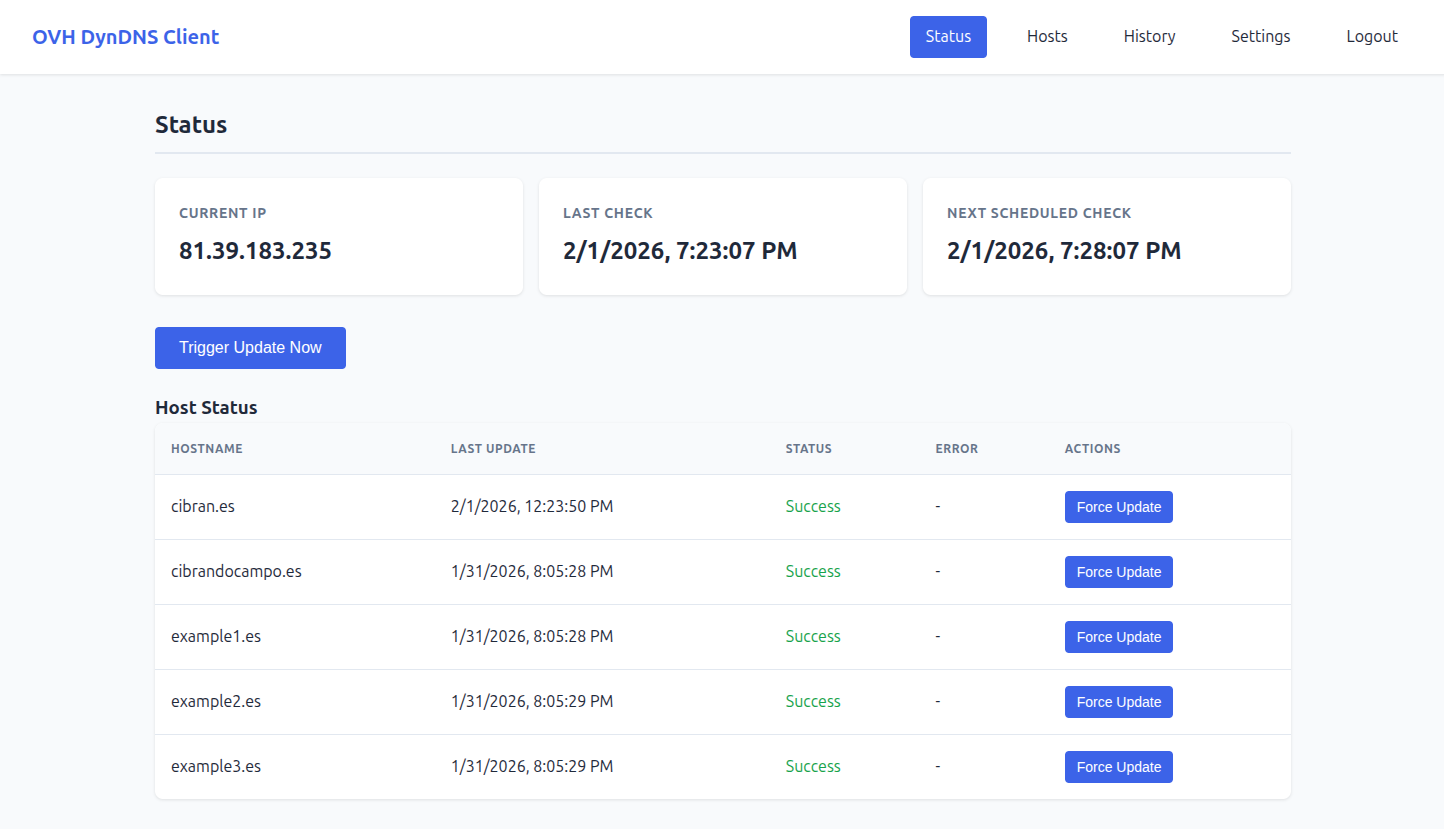
Your IP changes. Your domains shouldn't. Point your OVH domains to a dynamic IP and forget about it — one container, no external dependencies, your server, your rules.
See the project site →
Product tour, features, screenshots and self-host walkthrough
Important
**Coming from v4.x.x or earlier? Read this before upgrading.**v5.0.0 makes
./dataload-bearing: a newdata/.encryption_key(auto-generated on first boot) protects every OVH password stored in the database. If you lose this file, those credentials become permanently unrecoverable. Back up./dataimmediately after the first restart on v5.0.0, and on a regular schedule after that.The upgrade itself is zero-touch —
docker compose pull && up -dis enough. Other new behaviours to be aware of: the defaultadmin/adminpassword change is now server-enforced, and/api/auth/*is rate-limited per IP.
A closer look — How it works?
Hosts — one entry per domain record
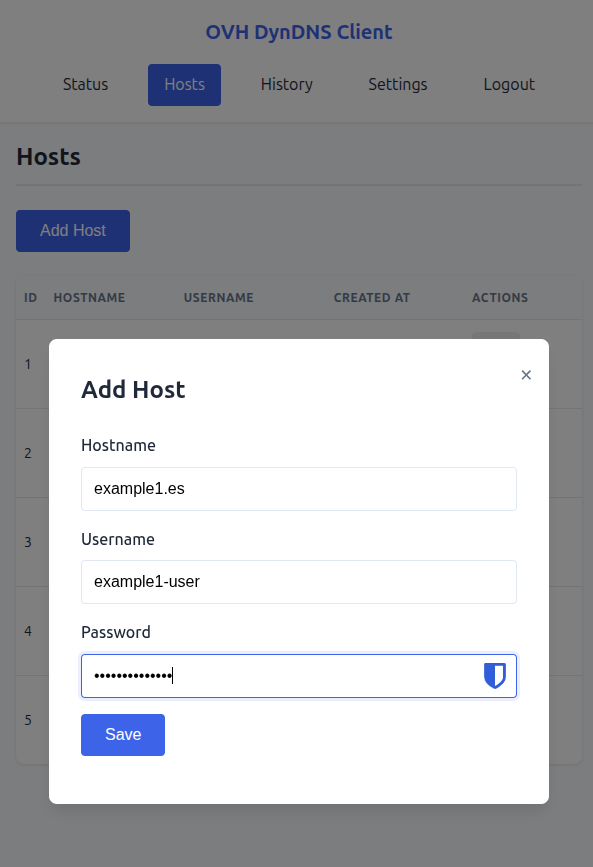
Each host corresponds to a DynHost entry in your OVH control panel. Add as many as you need — subdomains, multiple domains, different zones — each with its own OVH credentials. The client updates them all in parallel on every IP change.
Creating a host takes seconds: hostname, OVH username, and password. That is all the client needs to keep the record in sync. Hosts can be edited or removed at any time without restarting the service.
Settings — tune the behaviour without touching a config file
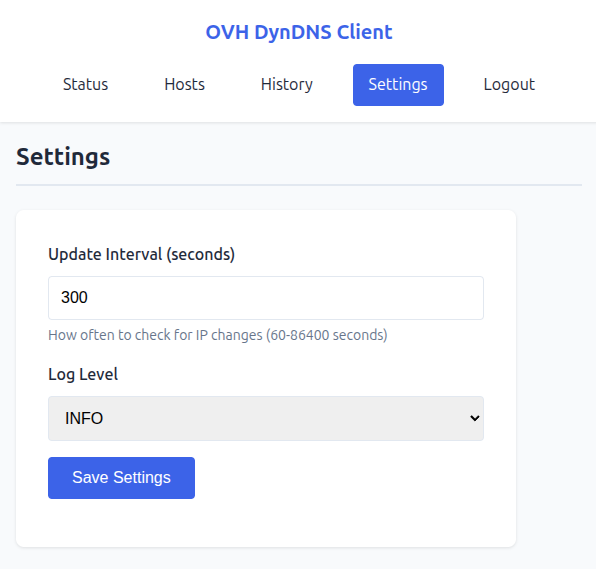
The check interval can be adjusted from the web interface at any time — no restart, no editing environment variables. Lower the interval if your IP changes frequently; raise it if you want to reduce external API calls.
Log verbosity is controlled by the LOGGER_LEVEL environment variable (DEBUG, INFO, WARNING, ERROR, CRITICAL; default INFO).
Features
- Web Interface — Manage hosts, view status and history from a browser
- REST API — Full-featured API with JWT authentication
- SQLite Database — Persistent storage, no external dependencies
- Auto-updates — Detects IP changes and updates DNS records automatically
- Auto-retry — Failed updates are retried on the next cycle
- Docker-ready — Multi-architecture support (amd64, arm64, arm/v7)
Quick Start
- Create
docker-compose.yaml:
services:
  ovh-dyndns-client:
    image: cibrandocampo/ovh-dyndns-client:${DOCKER_OVH_VERSION:-stable}
    container_name: "${PROJECT_NAME:-ovh-dyndns-client}"
    init: true
    restart: unless-stopped
    env_file:
      - .env
    ports:
      - "${API_PORT:-8000}:${API_PORT:-8000}"
    volumes:
      - ovh-dyndns-data:/app/data
    healthcheck:
      test: ["CMD", "wget", "--quiet", "--tries=1", "--spider", "http://localhost:${API_PORT:-8000}/health"]
      interval: 30s
      timeout: 10s
      retries: 3
      start_period: 40s

volumes:
  ovh-dyndns-data:
    driver: local
    driver_opts:
      type: "none"
      o: "bind"
      device: "${DATA_PATH:-./data}"
- Create
.envand data directory:
touch .env
mkdir -p data
All variables have defaults — .env can stay empty or be used to override them (see docs/CONFIGURATION.md).
- Run:
docker compose up -d
- Access: Open http://localhost:8000
Default credentials: admin / admin (password change required on first login)
Installation recommendations
The client only needs outbound access (to the public IP service and OVH). The web UI serves plain HTTP, so keep it off the internet unless it sits behind HTTPS:
-
Keep it on your LAN. If you do not need remote access, do not forward the port on your router. To accept connections only from the host itself (for example, when a reverse proxy runs there), publish the port on localhost:
"127.0.0.1:${API_PORT:-8000}:${API_PORT:-8000}". -
Use a reverse proxy with a TLS certificate for remote access. Put Caddy, Traefik or nginx (with Let's Encrypt) in front of the container and expose only the HTTPS port. Over plain HTTP the login password and the session token travel unencrypted. A minimal Caddyfile:
dyndns.example.com { reverse_proxy localhost:8000 } -
Set your own admin password before the first start. The
admin/admindefault is replaced on first login, but whoever logs in first chooses the new password. SetADMIN_USERNAMEandADMIN_PASSWORDin.envbefore runningdocker compose upfor the first time; they are only read when the admin user is created. -
Tell the app which proxy to trust. Login rate limits are per client IP. Behind a reverse proxy every request comes from the proxy's IP, so all clients share the limit of 5 logins per minute unless you set
FORWARDED_ALLOW_IPSto the proxy's address (see Behind a reverse proxy). -
Back up the data directory. It holds the database and the generated keys (
.jwt_secret,.encryption_key). Without.encryption_keythe stored OVH passwords cannot be decrypted.
Quality
Every change goes through a CI pipeline (GitHub Actions) with no shortcuts:
- Lint: ruff check — enforces code style and catches common errors
- Format: ruff format — consistent formatting across the codebase
- Tests: pytest with a minimum 90% coverage gate enforced in CI
The Codecov badge at the top of this page reflects the current state.
Docker images
Pre-built multi-arch images (linux/amd64, linux/arm64, linux/arm/v7) are published to Docker Hub automatically.
| Tag | When |
|---|---|
latest | Every push to main |
stable + vX.Y.Z | On GitHub release |
Images are also rebuilt weekly to pick up base-image security patches. Python dependencies are pinned and updated through monthly Dependabot PRs.
Advanced configuration
For most self-hosted deployments the defaults are fine — skip this section unless you have a specific need.
On first boot the container auto-generates two secrets and persists them under data/ with mode 0600:
| File | Purpose |
|---|---|
data/.jwt_secret | Signs JWT access tokens |
data/.encryption_key | Fernet key that encrypts OVH passwords at rest |
Because the database and its secrets live in the same data/ volume, migrating or backing up the deployment means copying that directory — the secrets travel with the data automatically.
You can pin either secret via environment variable if you need to:
# Fix the JWT signing key — useful when running multiple replicas or
# when you want an explicit key backup outside the data directory.
JWT_SECRET=<your-32-byte-url-safe-string>

# Fix the encryption key — CRITICAL: if you set this, keep a copy.
# Losing the key with encrypted hosts in the database makes those
# credentials permanently unrecoverable.
ENCRYPTION_KEY=<your-44-byte-base64-fernet-key>
The env var always takes precedence over the persisted file.
Documentation
- API Reference — REST API endpoints and examples
- Configuration — Environment variables and settings
- Development — Architecture, dev setup, and Claude Code workflow
Development
The development environment runs entirely inside Docker — no Python on the host. See docs/DEVELOPMENT.md for the full setup, including how to run tests, linters, and install the pre-commit hook.
Built with Claude Code
This project is developed with Claude Code, Anthropic's AI coding assistant. Custom skills and commands are provided in .claude/ to maintain project conventions and support a structured dev workflow. See docs/DEVELOPMENT.md for details.
Links
- Project website — Marketing landing with screenshots and self-host walkthrough
- GitHub Repository
- Docker Hub
- OVH DynHost Documentation
Support
- Issues: GitHub Issues
- Email: [email protected]
License
Released under the MIT License © 2022 Cibrán Docampo Piñeiro.
You are free to use, modify, distribute, and self-host this software — personally or commercially — as long as the original copyright notice is preserved. No warranty is provided.
Tag summary
Content type
Image
Digest
sha256:e6984e427…
Size
59.6 MB
Last updated
1 day ago
docker pull cibrandocampo/ovh-dyndns-client